
Social media ads generate leads quickly, but manual data handling can slow down follow-ups, leading to missed opportunities. Automating the connection between your ad platforms and CRM ensures leads are acted on while interest is high. Zapier simplifies this process, transferring lead data from platforms like Facebook or TikTok into your CRM in seconds.
For example, Nectar Sleep used Zapier to connect Facebook’s Conversions API with their CRM, uncovering 28% more purchase events and lowering acquisition costs. Similarly, syncing CRM data back to ad platforms improves targeting, boosting lead-to-sales conversions by up to 20%, as noted by Facebook’s Nicholas Shannahan.
Teamgate gives growing sales teams clarity, structure, and trustworthy pipeline insight – without enterprise CRM bloat or feature overload. Learn how to set up Zapier workflows for real-time lead syncing, advanced data enrichment, and automated lead routing to streamline your sales process and close more deals.
Master 80% of Zapier in 10 MINUTES
sbb-itb-5772723
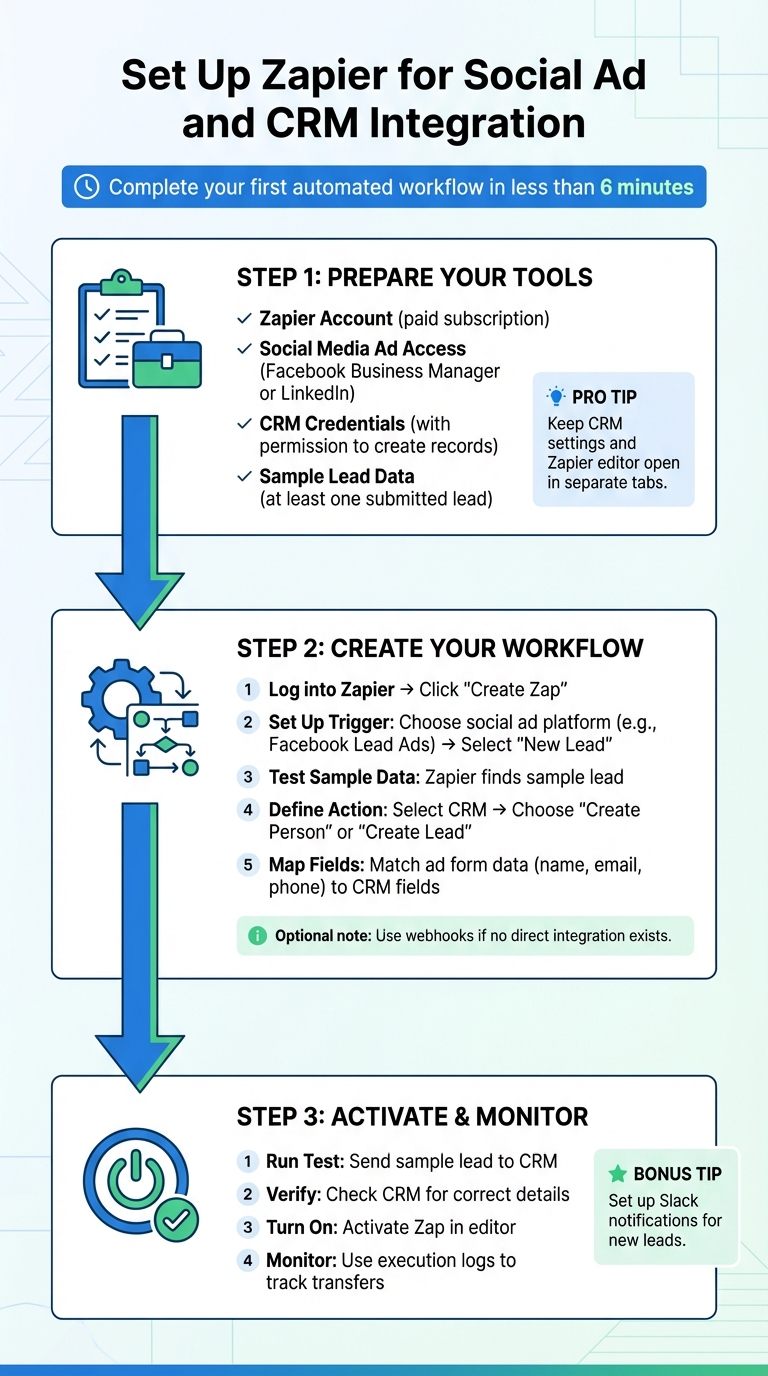
How to Set Up Zapier for Social Ad and CRM Integration
How to Set Up Zapier for Social Ad and CRM Integration in 3 Steps
You can set up your first automated workflow in less than six minutes. The process is straightforward and involves three key steps: preparing your tools, building the workflow, and activating it. Here’s a step-by-step guide to help you set up, test, and activate your lead sync workflow.
What You Need Before Starting
Before diving into the setup, make sure you have everything ready:
- Zapier Account: A paid Zapier subscription is required for premium apps like Facebook Lead Ads.
- Social Media Ad Access: Administrative access to platforms like Facebook Business Manager or LinkedIn Ad Account.
- CRM Credentials: Valid login details with permission to create new records.
- Sample Lead Data: Ensure at least one lead has been submitted via your social ad form. Zapier uses this data for testing and field mapping. Draft forms won’t work for this step.
Pro Tip: Keep your CRM settings and Zapier editor open in separate tabs. This allows you to quickly copy API keys and verify field names, saving time during setup.
Creating Your First Lead Sync Workflow
- Log into Zapier: Start by signing in and clicking "Create Zap."
- Set Up the Trigger: Choose your social ad platform (e.g., Facebook Lead Ads) and select "New Lead" as the trigger event. Connect your account, then pick the specific business page and lead form you want Zapier to monitor.
- Sample Data: Zapier will find your sample lead to ensure the connection works and to help you map fields correctly.
- Define the Action: Select your CRM—or compare CRM options like Teamgate, HubSpot, and Salesforce—as the action app and choose an action like "Create Person" or "Create Lead." Field mapping is critical here – match data from your ad form (e.g., name, email, phone number) to the appropriate CRM fields. For example, map "Full Name" from Facebook to the "Name" field in your CRM.
- Webhooks (Optional): If your platform doesn’t have a direct integration, use webhooks. Set the payload type to "json", which most modern CRMs support.
Proper field mapping ensures your data is transferred accurately, so double-check this step before moving on.
Turning On and Monitoring Your Workflow
- Run a Test: Before activating, test the workflow. Zapier will send your sample lead data to the CRM to confirm everything is working. Verify in your CRM that the lead appears with all the correct details.
- Activate the Zap: Once the test is successful, turn on your Zap in the Zapier editor. Also, ensure any necessary settings in your CRM are enabled to handle incoming data.
- Monitor Performance: Use Zapier’s execution logs to track whether leads are transferring correctly. Logs will show any errors or successful transfers.
For added convenience, you can set up a notification Zap to alert your team in Slack whenever a new lead is processed. This keeps everyone informed without needing to check multiple systems.
With your workflow live, your leads will automatically sync, allowing you to focus on improving sales outcomes while Zapier handles the heavy lifting.
Advanced Workflows for Better Data Sync
Once your basic Zapier lead sync is in place, you can take things further by setting up advanced workflows to improve data quality and streamline lead distribution. These workflows ensure that your CRM holds only the most relevant data and that every lead reaches the right sales rep at the right time.
Adding Extra Data to Leads Automatically
A simple two-step Zap transfers leads, but a multi-step workflow can do much more. By adding intermediate steps, you can enrich leads with valuable context before they hit your sales team. For instance, you can pull in company details, clean up data formatting, or score leads based on their responses.
- Data Standardization: Use Formatter by Zapier to clean up messy data. You can capitalize names, reformat phone numbers to match your CRM’s standards, or convert dates into a consistent format. This keeps your records neat and professional.
- Company Information: Add a step to look up company details like industry, size, or revenue based on the lead’s email domain. This gives your sales reps the background they need for personalized outreach without wasting time on manual research.
- Lead Filtering: Filter by Zapier helps you block incomplete or low-quality leads. For example, you can stop leads with invalid emails, generic domains (like gmail.com), or missing fields from cluttering your CRM.
- AI-Powered Enrichment: Integrate ChatGPT to analyze lead responses, extract key information from messages, or even draft personalized emails for your reps. This speeds up response times while still keeping interactions human and tailored.
Once your leads are enriched, you can prioritize and assign them automatically, ensuring no opportunity is missed.
Automatic Lead Assignment and Routing
Paths by Zapier allows you to automate lead routing with conditional logic, directing leads to the right sales reps or pipeline stages based on preset criteria. Instead of dumping all leads into a general queue, you can route them based on geography, product interest, or engagement level.
For example:
- A lead from California interested in an enterprise product could be routed to the West Coast enterprise rep and placed in a high-priority pipeline stage.
- A lead from Texas interested in a starter plan might go to the SMB team with a tailored follow-up sequence.
This eliminates manual sorting and ensures leads are contacted quickly – critical when dealing with fresh inquiries.
To make things even more efficient, you can combine routing with instant notifications. For high-priority leads, trigger alerts via Slack or SMS so reps can act immediately. Advertisers using Zapier to sync CRM data back to Facebook through the Conversions API have reported up to a 20% boost in lead-to-sales conversion rates by helping Facebook’s algorithm identify better prospects.
For teams using Teamgate CRM, these workflows ensure every lead is assigned an owner and a clear next step. This prevents leads from sitting idle and keeps your pipeline filled with actionable opportunities, boosting sales productivity. Teamgate helps growing sales teams maintain clarity and structure while avoiding the complexity of bloated CRM systems.
Connecting Multiple Platforms with Teamgate CRM
Zapier makes it simple to integrate your lead data from platforms like Facebook Lead Ads, Instagram, TikTok Lead Generation, and others directly into Teamgate CRM – no coding required. With its trigger-and-action workflows, Zapier ensures that when a lead fills out a form on these platforms, their details – such as name, email, phone number, campaign source, and custom responses – are automatically added to Teamgate as a lead or contact record.
What makes this setup even more effective is the ability to sync multiple platforms at once. You can create separate Zaps for each platform and route leads into Teamgate’s pipeline based on their source. For instance, Facebook leads might be assigned to a high-priority stage with a specific sales rep, while TikTok leads are directed to a different rep with a tailored follow-up plan. This automation removes the hassle of manually sorting leads, ensuring faster follow-ups and reducing the chances of leads being overlooked.
Teamgate’s mandatory next-step system takes this a step further by assigning clear actions to every lead entering from social ads – whether it’s scheduling a demo, sending a follow-up email, or making an initial call. Combined with Zapier’s automation, this prevents leads from sitting idle and slipping through the cracks. Additionally, the integration supports sending CRM data back to Facebook’s Conversions API, helping advertisers improve lead-to-sales conversions by up to 20% through better algorithm training.
Using Webhooks for Platforms Without Direct Integrations
Not all social platforms are directly supported by Zapier, but that doesn’t mean you have to miss out on capturing leads. Webhooks by Zapier offers a workaround by allowing you to collect lead data from any platform capable of sending a POST request. This involves generating a unique webhook URL, configuring your ad platform to send lead data in JSON format to that URL, and letting Zapier handle the rest.
This method is especially helpful for smaller or niche platforms without native integrations. For instance, if you’re running campaigns on a specialized B2B platform or a regional app, you can still ensure these leads are routed seamlessly into Teamgate. The webhook payload typically includes key fields like name, email, phone, and campaign ID, which you can map to Teamgate’s lead and contact fields, just as you would with any other Zap.
The process is straightforward: set up a "Catch Hook" trigger in Zapier, copy the webhook URL, paste it into your ad platform’s lead notification settings, and test it with a sample lead. Once verified, all new leads are automatically added to Teamgate’s pipeline, complete with a defined stage and next step. This ensures that no lead source is left out. With this setup, every lead – regardless of its origin – is converted into actionable data within Teamgate.
Setting Up Teamgate CRM for Predictable Revenue
Teamgate CRM’s design revolves around structured pipeline stages and required next steps, making it the perfect destination for automated lead syncing. Instead of landing in an unorganized database, leads from Zapier are placed directly into a pipeline with stages like "New Lead", "Contacted", "Qualified", and "Proposal Sent." Each stage requires a specific next step, ensuring no lead goes unnoticed or neglected.
This structure transforms social ad leads into actionable opportunities. For example, a Facebook lead entering Teamgate is automatically assigned to the correct sales rep, placed in the appropriate pipeline stage, and given a follow-up task with a deadline. Built-in reminders ensure timely action, reducing the risk of losing leads due to delayed responses.
Best Practices for Maintaining Zapier Workflows
Keeping your Zapier workflows in good shape is essential to avoid disruptions and ensure your automations run smoothly. Regular checks help you catch small issues – like changes in CRM fields or social platform updates – before they turn into bigger problems. By staying proactive and using data to fine-tune your workflows, you can maintain reliable and efficient systems.
Fixing Common Problems
Some of the most frequent challenges include mismatched fields, duplicate contacts, and delayed syncs. For example, if new ad form fields or updated CRM field names disrupt your mapping, leads might stop appearing in Teamgate. To troubleshoot, start by testing the trigger in Zapier. Keep in mind that Zapier requires at least one existing lead in the source app to confirm the connection is active and working properly.
Duplicate contacts are another common issue – they clutter your pipeline and waste valuable time. You can address this by switching the action step from "Create Lead" to "Find or Create Lead" in Teamgate. This ensures that Zapier searches for existing contacts before creating new ones, keeping your database organized. If you’re using webhooks for more specialized platforms, double-check that the payload type is set to JSON and look for a "success: true" message in the Zap editor to confirm the connection.
Here’s a quick troubleshooting guide for common issues:
| Common Issue | Troubleshooting Step |
|---|---|
| Mismatched Fields | Re-map the "Keys" in the Action step to match updated CRM field names. |
| Missing Leads | Verify that the lead existed before the Zap was activated; Zapier only processes new entries. |
| Duplicate Contacts | Switch the Action step to "Find or Create Lead" to avoid duplicates. |
| Delayed Sync | Check the task history for rate limits or confirm the trigger is set to "Instant". |
Once these fixes are applied, review your data and make additional adjustments to improve workflow performance.
Improving Workflows Based on Results
After resolving common issues, focus on refining your workflows using performance data. For example, you can integrate a "Filter by Zapier" step to block irrelevant data and sync only qualified leads – such as those with a specific job title or budget threshold. Additionally, using "Paths" (Zapier’s conditional logic feature) allows you to route different types of leads to the appropriate sales reps based on the ad they clicked.
Advertisers who sync CRM data back to Facebook using the Conversions API have seen up to a 20% improvement in lead-to-sales conversion rates. This is because sharing CRM data helps Facebook’s algorithm target higher-quality leads. Nicholas Shannahan, Product Marketing Lead at Facebook, explains:
"Facebook can deliver a higher quality lead if an advertiser passes back CRM data to Facebook, which allows us on our side to train a new model and better find leads that are likely to convert".
After making changes to your workflows, always test triggers and actions to ensure everything runs smoothly. Set up Slack or email alerts to stay informed about high-priority leads. With Teamgate’s mandatory next-step system, every lead synced through Zapier gets a clear action assigned – like scheduling a follow-up call or booking a demo. This makes it easy to spot bottlenecks in your pipeline and adjust your workflow to keep leads moving forward efficiently.
Conclusion
Integrating Zapier with Teamgate CRM takes the manual effort out of your sales process, ensuring leads are handled promptly and efficiently. Instead of spending days exporting spreadsheets and manually entering data, your team benefits from real-time lead syncing. For example, the moment a prospect fills out a Facebook ad form or engages with a social campaign, their details are instantly added to your CRM. As Reid Robinson, Senior Strategic Alliances Manager at Zapier, explains:
"The way I like to describe Zapier is kind of like ‘Grand Central’ for your lead data. We help get your data from Point A to Point B… with less time doing manual uploads or downloads of your data and more time focusing on what really matters to you".
This seamless automation ensures your pipeline stays accurate and up-to-date. By eliminating human intervention, you reduce errors, avoid duplicate entries, and maintain complete and reliable data. Every lead is automatically assigned a clear next step – whether it’s scheduling a demo, making a follow-up call, or entering a nurture sequence – so no opportunities fall through the cracks.
Beyond streamlining your internal workflows, this integration also improves your marketing efforts. By sending CRM data back to Facebook using the Conversions API, you help the platform optimize its targeting, focusing on leads most likely to convert. According to Nicholas Shannahan, Product Marketing Lead at Facebook, this can lead to "up to a 20% increase in lead to sales conversion". With smoother workflows and a dependable pipeline, you can stop guessing and start growing. Use Zapier with Teamgate CRM to build a system that delivers consistent, predictable revenue.
FAQs
How do I prevent duplicate leads when syncing social ad forms to my CRM?
To prevent duplicate leads when syncing social ad forms to your CRM, set up deduplication checks in your automation process. Use unique identifiers like email addresses or phone numbers to update existing records rather than creating duplicates. Tools like Zapier can streamline this by building workflows that check if a lead already exists in your system. This ensures your database remains accurate, giving your sales team clean and current contact information to work with.
How can I route leads to different reps automatically based on location or campaign?
You can integrate automation tools like Zapier with your CRM to assign leads to sales reps based on factors like location or campaign. For instance, workflows can analyze lead details – such as geographic information or campaign tags – and route them to the right team members. Using Zapier’s webhooks and filters, you can enable real-time lead distribution, ensuring quick follow-ups and tailored interactions while simplifying your sales operations.
What data should I send back to Facebook via the Conversions API to improve targeting?
To improve targeting using the Facebook Conversions API, focus on sending key conversion events like purchases, leads, or other meaningful user actions. These events provide valuable data to track engagement and refine ad delivery for improved performance.